
Hold a key. Turn the wheel. Edit faster.
Lumerist is a free, open-source app and plug-in for Lightroom Classic, on the Mac and on Windows. Hold Q and turn the mouse wheel, or swipe on the trackpad: Exposure moves, and your eyes never leave the photo. Every Develop slider gets a key.
macOS 14 or later, Apple Silicon and Intel · Windows 10 or 11 · Lightroom Classic 12 or later
Free and open source (GPL-3.0) · No account · Nothing leaves your computer
Capture One has it. Lightroom doesn’t.
“I fell in love with how fast you can edit in Capture One: one hand on the keys, the other on the mouse, and the sliders follow you instead of you hunting for them in a panel.”
“Every time I went back to Lightroom Classic I missed it. Dragging tiny sliders with the pointer felt slow, so I built the gesture myself. With Lumerist I edit my photos at least five times faster.”
Giulio, photographer
Five times is a rough estimate, not a lab test: how much you save depends on how you work.
Your hands stay put. The sliders come to them.
One key, one slider.
Hold a key and turn the wheel, swipe on the trackpad, drag, or tap ← →. Add ⇧ for the larger step. Let go and you’re back on the photo. A quick tap still reaches Lightroom, so its own shortcuts, and your typing, keep working.
- About 130 Develop parameters, masks included
- A step for every slider, and a larger one with ⇧
- Double-click or middle-click resets the slider you’re holding
Masks follow your hands.
Select a mask and the same keys move the mask’s sliders, never the whole photo. Hold the key left of 1 and the Palette opens: your favourite presets and Lightroom’s own mask tools, from subject and sky to brush, linear and radial. With a mask selected, ⇧-click adds and ⌥-click subtracts, as in Photoshop.
Hold Tab for a second keyboard.
Tab + A is Auto Tone, Tab + W Auto White Balance, Tab + R resets everything, Tab + Q pastes the settings of the previous photo. On their own, A, W, R and Q stay sliders. Any Lightroom command, preset, shortcut or macro can sit on a key or a combo.
The number, where you’re looking.
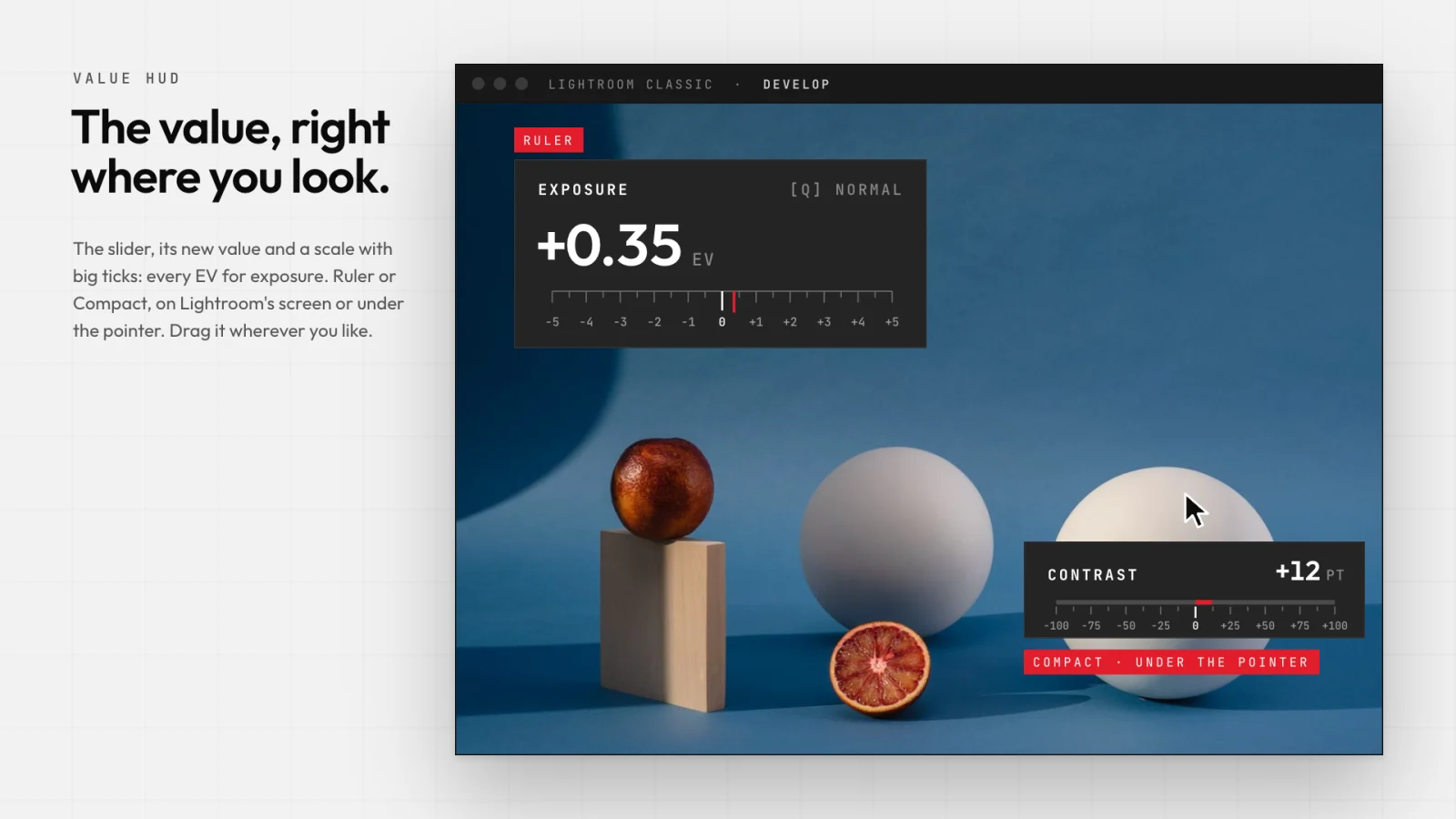
A small read-out shows the slider, its new value and a scale with big ticks, one per EV on exposure, on Lightroom’s screen or right under the pointer. It stays dark in every theme, so it never glares over a photo.
Looks like it belongs on your desk.
The Galerist theme is white, hairlines and square corners, light or dark or following the Mac. Miami is the original neon. On Windows Lumerist lives next to the clock, on the Mac in the menu bar, and it starts and quits with Lightroom.
And the small things that add up
Nudge Keys
Tap a key to move a slider one step up or down.
Library, too
Quick Develop on every selected photo, with the same keys.
Key Reference
Tab + H lists the keys of the module you’re in.
Mouse buttons
The side buttons go to the previous and the next photo.
Any keyboard
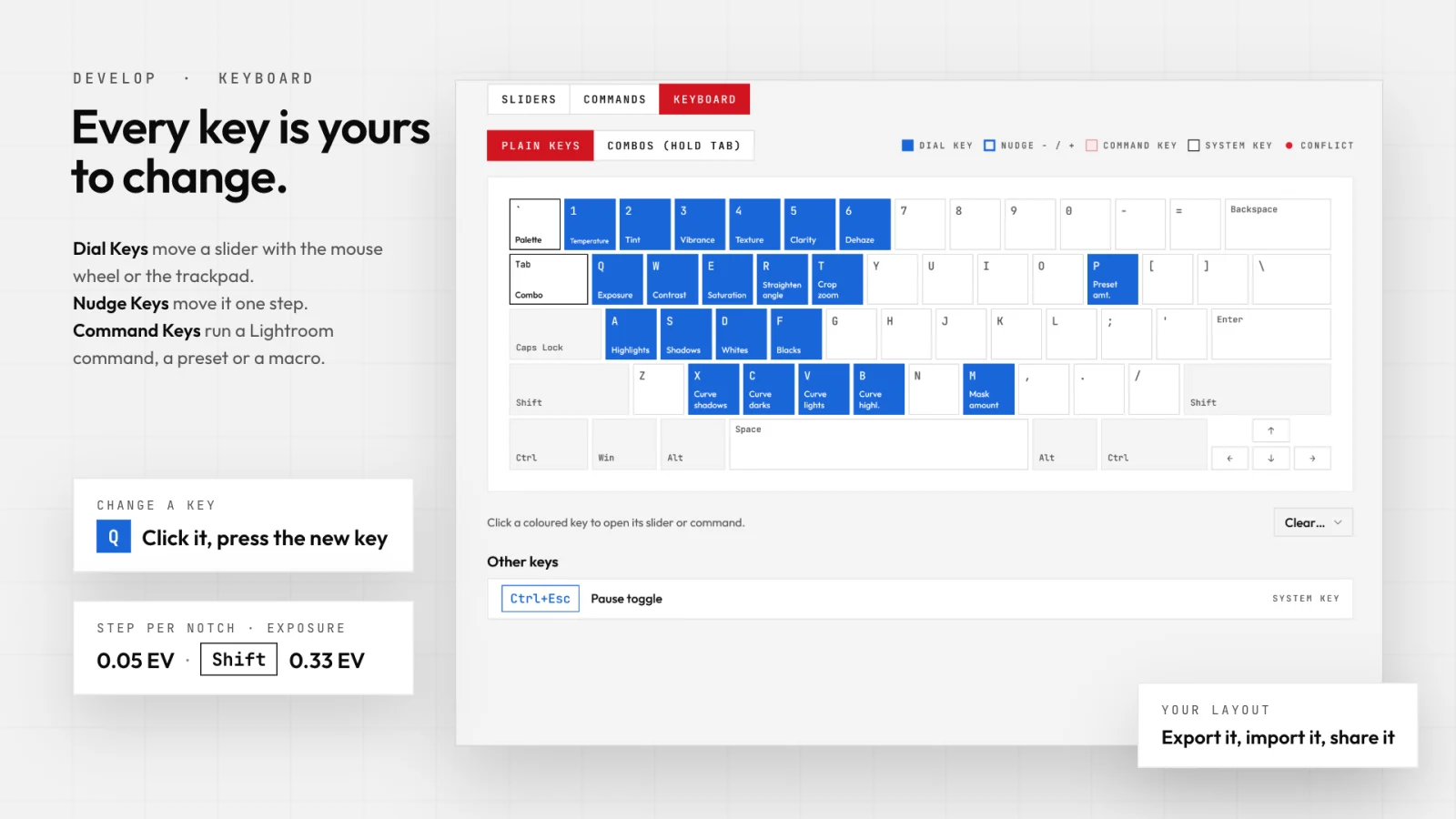
Keys are stored by position: QWERTY, AZERTY, QWERTZ, Italian.
Your own layout
Reassign any key, change any step, export and import the lot.
Coming from Capture One? You already know it.
1, 2, Q, W and A S D F are Capture One’s default Speed Edit keys. Lumerist keeps them and fills in the rest for Lightroom: R straightens, because a tap on R opens the crop anyway, and the tone curve sits where Capture One keeps Levels, dark to light from X to B.
Tab is the Combo Key, the key left of 1 opens the Palette, ⌃Esc pauses Lumerist (Ctrl+Esc on Windows). In Library the same keys drive Quick Develop on every selected photo.
Read this before you install it.
Lumerist does one job. Here is everything it leaves to someone else.
- It doesn’t edit for you. No AI, no automatic looks. It moves the sliders you would move, faster; the decisions stay yours.
- Lightroom Classic only. Not the cloud-based Lightroom, not Lightroom on a phone or a tablet, not Capture One or Photoshop.
- It doesn’t export, upload or sync. Your photos stay in your catalog. Lumerist talks to Lightroom on your own computer and nothing else.
- It doesn’t cull or organise. Picks, ratings, flags and collections are Lightroom’s. Lumerist can put them on a key, nothing more.
- Windows: not code-signed yet. The first time, Windows shows «Windows protected your PC». The Mac version is signed and notarized by Apple.
- Layouts don’t travel between Mac and Windows. Not yet: each computer keeps its own. Export and import work on the same system.
- It isn’t Adobe’s. Lumerist is not made, endorsed or supported by Adobe.
Download, open, hold Q.
On the Mac
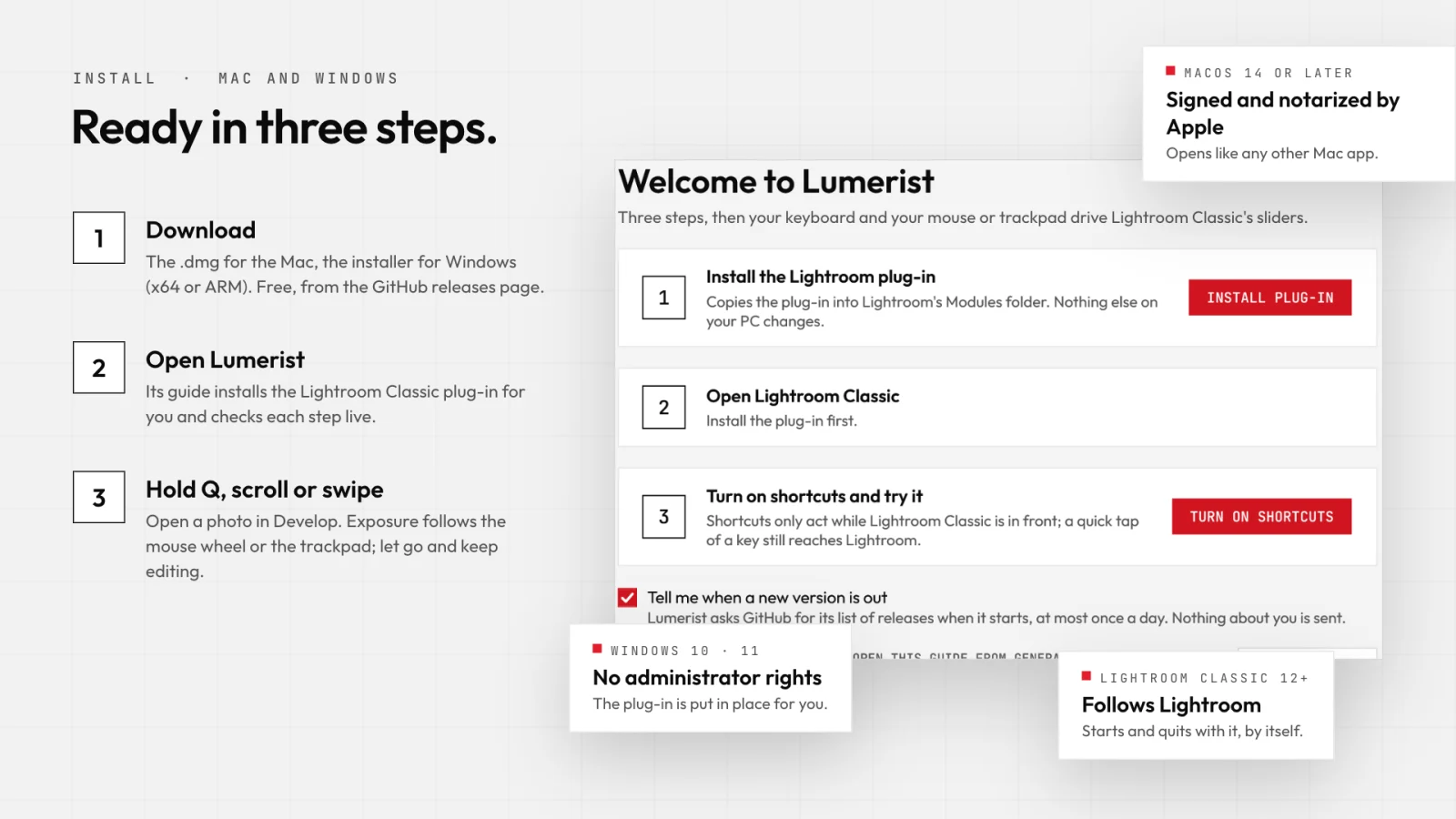
- Download the .dmg and drag Lumerist into Applications. It is signed and notarized by Apple, so it opens like any other app.
- Follow the first-run guide. It installs the Lightroom Classic plug-in and opens the privacy pane where you let Lumerist read the keyboard, mouse and trackpad (Privacy & Security → Accessibility).
- Restart Lightroom Classic, open a photo in Develop, hold Q and turn the wheel.
On Windows
- Download the installer (x64, or ARM64 for ARM PCs) and run it. It installs for your user only, with no administrator rights. A portable zip is there too.
- The first time, Windows warns you. The Windows version isn’t code-signed yet: click More info, then Run anyway. Each file has its SHA-256 checksum next to it on GitHub, if you want to check it.
- Open Lightroom Classic. The plug-in is already in place and Lumerist waits next to the clock. Hold Q and turn the wheel.
Lumerist tells you when a new version is out: at most once a day it asks GitHub for the list of releases, and you can switch that off. Install the new version over the old one. Your keys and settings stay, and the Lightroom plug-in updates itself the next time Lightroom closes.
What it runs on.
| macOS | 14 Sonoma, 15 Sequoia, 26 Tahoe, 27 |
|---|---|
| Mac | Apple Silicon and Intel, one universal app |
| Windows | 10 (1809 or later) and 11, x64 and ARM64, nothing else to install |
| Lightroom Classic | 12 or later; developed and tested on 16 |
| Keyboard | Any layout: keys are stored by physical position |
| Price | Free and open source, GPL-3.0 |
Nothing leaves your computer.
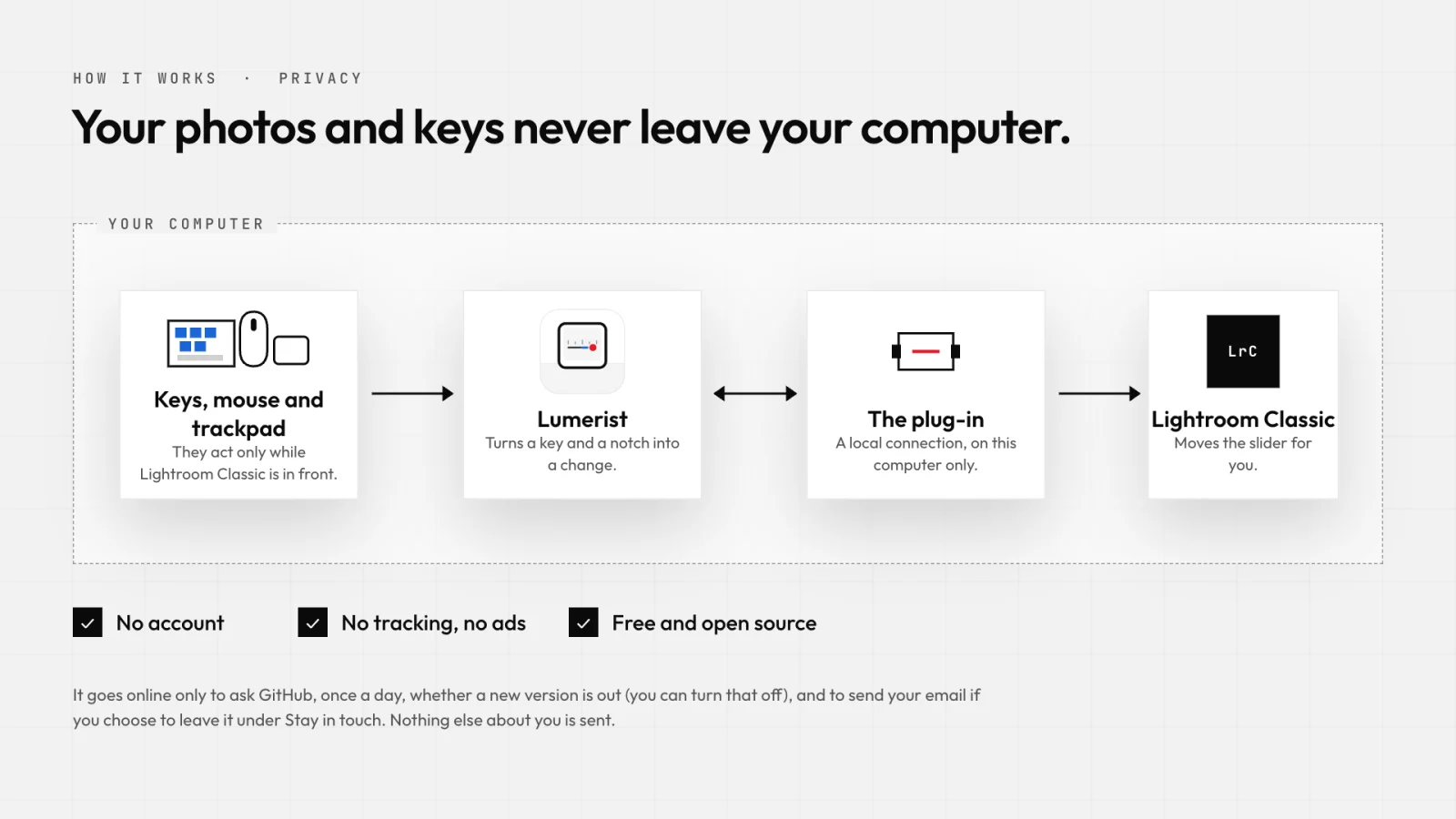
Lumerist has no telemetry. The app and the plug-in talk to each other only inside your computer (127.0.0.1), so nothing about your photos, your catalog or your keystrokes goes online.
It connects for two things. At most once a day it asks GitHub whether a new version is out, and you can switch that off. And only if you type your email and press Keep me posted does it sign you up for news from its developer: that list is run by Galerist, and its privacy policy explains how.
Edited. Now deliver it.
Lumerist gets you through the edit faster. What your client remembers is the delivery, and that is the other tool built at the same desk: Galerist, client galleries for photographers and videographers. Export from Lightroom as you always do, drop the files in, send one link.
- JPEGs delivered byte for byte, never recompressed
- Photos and video, streamed up to 4K, in one gallery
- Proofing: your client marks favourites and comments on the photo itself
- Your logo on every gallery
No card to sign up · €9.99 for one gallery, or a plan from €11.99 a month billed annually
You don’t need one to use the other: Lumerist works without a Galerist account, and Galerist doesn’t mind how you edited.